
Software
A 1991 Floppy, Mounted in macOS 27
Last night a System 7 installer disk from 1991 went into a USB floppy drive and appeared on a modern Mac's desktop, with its classic icons, like any other disk. Here's how we got a thirty-five-year-old file system to mount in today's Finder
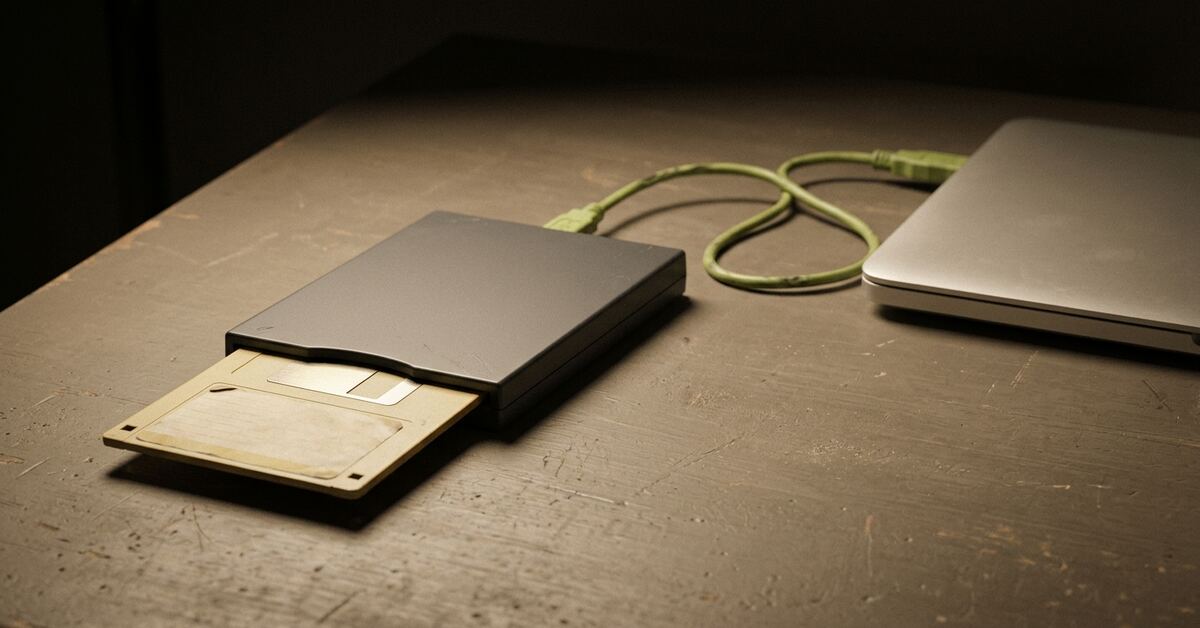
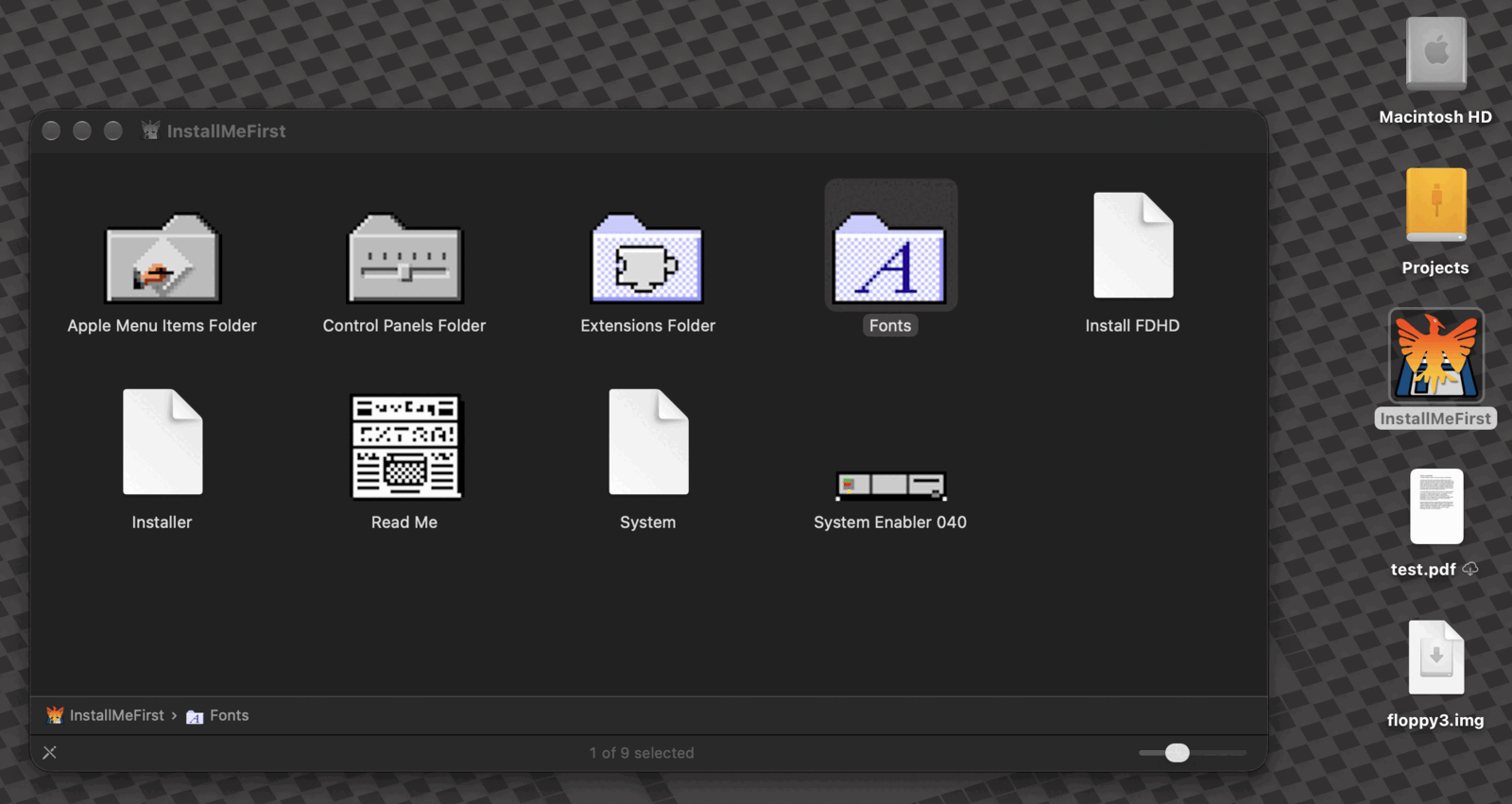
It was late in the evening when the disk icon appeared. A plain 1.44 MB floppy went into a USB floppy drive plugged into a Mac running macOS 27. A few seconds later the desktop showed a new disk called InstallMeFirst. Double-click it, and there they are: the Apple Menu Items folder, Control Panels, Extensions, Fonts, the Installer, the Read Me and System Enabler 040, with the icons they had in 1991.
That may not sound like much. Plug in a USB stick and it appears on the desktop; why should a floppy be different? Because the Mac stopped understanding this disk a long time ago.
A file system the Mac forgot
Classic Mac disks use HFS, the Hierarchical File System Apple introduced in 1985. For years every Mac could read it. Then, in 2019, macOS Catalina quietly dropped it. Today’s macOS doesn’t recognise an HFS disk at all: put one in, and you get the polite alert that the disk “is not readable by this computer” and an offer to initialise it, which would erase it.
For an archive of old disks, that’s the wrong answer. Until now, the way round it has been an emulator, or copying the disk to an image file and opening the image with a tool like Disk Phoenix. Both work. Neither lets you just put the disk in and look.
Teaching the Mac a new file system
Recent versions of macOS include FSKit, Apple’s framework for writing file systems as ordinary app extensions instead of kernel code. An app can ship a small module that says “I understand this kind of disk”, and macOS will hand it the disk when one turns up.
So Disk Phoenix now carries one: DiskPhoenixFS, built on the same kits Disk Phoenix uses to read classic disks and disk images. When a disk arrives, the path looks like this:
- USB floppy drivea 1991 HFS disk
- Disk ArbitrationmacOSasks every file-system module: is this yours?
- DiskPhoenixFSan FSKit module in Disk Phoenixfinds the HFS signature and says yes
- Disk Phoenix’s classic kitsread the catalog, files and icons
- Finderlists, icons, file contents
every request goes through the module
The part of macOS that decides what to do with a new disk is called Disk Arbitration. It asks each installed file-system module, in effect, “is this one yours?” Our module answers by looking for the signature every HFS volume carries near its start. If it’s there, macOS asks us to mount it, and from then on the Finder asks our module for folder listings, file names, icons and file contents, just as it would ask Apple’s own file systems.
Getting that far had a catch we hadn’t expected. A module has to declare which kinds of disk it wants to be offered, and Disk Arbitration reads those declarations once, when it starts up. For a while our module was installed and enabled and never asked about anything, because its declaration hadn’t been read yet. One restart later, the floppy was ours.
The twenty-second rule
The next problem was time.
Disk Arbitration gives a file system about twenty seconds to finish mounting. If it takes longer, macOS gives up and the disk never appears. That’s plenty for a modern drive. A USB floppy drive, though, reads at floppy speed: reading the whole of a 1.44 MB disk takes about fifty seconds.
Our first approach read the whole disk before mounting, so that everything was in memory, and it was simply too slow. The fix was to stop reading the whole disk up front.
Read the whole floppy first
Read only what’s needed
The deadline is about 20 seconds. Reading the whole floppy takes about 50 seconds and fails; reading only the header and catalog takes about 4.5 seconds and mounts.
Instead, the module now reads only what it needs to describe the disk: the volume header and the catalog that lists every file and folder. Everything else is read when it’s asked for. With that change, the floppy mounts in about four and a half seconds.
Icons, the classic way
Mounting quickly brought a problem of its own: the icons.
A classic Mac didn’t store a folder’s or file’s icon in one obvious place. Applications carried their icons in their resource forks, and the Finder kept a Desktop database on each disk, a record of which application owns which kinds of document and what their icons look like. Custom folder icons, like the ones on this disk, live in an invisible “Icon” file inside each folder. To show the right icon you often need to look in several places across the disk.
That’s exactly the kind of reading the quick mount skips. So we do it in two stages:
Finder
DiskPhoenixFS
- The disk mounts at once, with everything you need to browse it.
- In the background, the module reads the whole disk, at floppy speed, and rebuilds the full picture, Desktop database and all.
- When the Finder asks for an icon, the module waits briefly for that picture and then answers with the icon the classic Finder would have drawn.
The result is the window above: the Fonts folder with its big “A”, the Control Panels slider, the Extensions puzzle piece, and the Read Me with its classic document icon. A few items, such as the Installer and the System file, still show a plain page: the modern Finder is erratic about refreshing icons on unusual file systems, which is Apple’s to fix, and we’ll report it. The information our module gives it is the disk’s own.
Why this matters
The point isn’t nostalgia, though there’s some of that. A great many floppies like this one are sitting in drawers and archives, and the machines that can read them natively are getting rarer every year. Being able to put one into a cheap USB drive on a current Mac and see exactly what’s on it, with names, dates, icons and contents intact, makes the first step of preserving it ordinary.
It also does more than mount. With the disk in the drive, Disk Phoenix can copy a perfect image of it, all 1,474,560 bytes in about 46 seconds, and its Disk Medic can check the volume’s structure before anything is trusted. The same disk can be opened, browsed, checked and imaged on today’s Mac.
- Browse it in the Findermounts in about 4.5 s
- Image itall 1,474,560 bytes in about 46 s
- Check it with Disk Medicvolume structure checked before anything is trusted
What’s next
There’s tidying to do before this ships. We want the module’s first check to stay quick even on slow and damaged disks, and to cover the older MFS disks from 1984 as well as HFS. Every part also needs the tests that let us change it without fear. But the hard bit is done. A disk made for a Mac that ran System 7 in 1991 can now be put into a Mac running macOS 27, and it just turns up on the desktop.